 Orbit
OrbitGetting started
Mind maps written in markdown and explored like a solar system.
- Real-markdown authoring: headers and bullet lists nest the tree.
- YAML alternative for app-generated maps.
- Explorable: zoom into a node to enter it and out to leave, flick the orbit to spin it, pan and zoom the overview. Every move is animated so you never lose your place.
- Readable at any size: labels stay crisp, sized for reading and in high contrast.
- Fourteen themes, from pastel paper and a field of stars to flat, Material and liquid glass, each restylable with CSS custom properties, and Material themes built from any color.
- First-class pictures, videos, embeds and multi-line notes per node: pictures and videos open over the whole window, to zoom into and to play, and the rest in a built-in detail sheet, unless you handle
onActionyourself. - Keyboard and screen-reader friendly: one tab stop, arrow-key navigation, a list view of the whole map, and announcements as you move.
- Framework-agnostic core with no dependencies; React wrapper at
@restless-dreams/orbit/react;markedextension at@restless-dreams/orbit/marked. - Made for coding agents too: the docs in one file (
llms-full.txt), an agent skill, validation as JSON, and problems reported with the fix.
Install
npm install @restless-dreams/orbitOptional peers (only if you use those integrations):
npm install react react-dom   # for @restless-dreams/orbit/react
npm install marked            # for @restless-dreams/orbit/marked
Working with a coding agent? Point it at node_modules/@restless-dreams/orbit/llms-full.txt, or install the skill with npx skills add restless-dreams/orbit. See Coding agents.
Quick start (vanilla)
import { createOrbitMap } from '@restless-dreams/orbit';

const map = createOrbitMap(document.getElementById('map')!, `# 🚀 Project

## Research
## Build
## Launch`);

map.on('focus-change', ({ node }) => console.log('Now looking at', node.text));
The map fills its container, so give the container a size. createOrbitMap returns the renderer: call map.render(newMarkdown) to draw a new version (the reader keeps their place), and map.destroy() when you remove it. Options passed in win over the document’s frontmatter; documentToRendererOptions(doc.options) shows what a document asks for. new OrbitSVGRenderer(element, options) plus renderer.render(source) is the same thing in two steps.
React
import { OrbitMindMap } from '@restless-dreams/orbit/react';

const markdown = `# Project

## Research
## Build`;

export function ProjectMap() {
  return (
    <div style={{ height: 480 }}>
      <OrbitMindMap source={markdown} onNodeClick={(node) => console.log(node.text)} />
    </div>
  );
}
OrbitMindMap fills its parent, so give the parent a size. Pass the map as source (markdown or YAML), as a parsed document, or as a node tree in data. Inline callbacks and inline theme / palette objects are fine: the map only redraws when their values change.
- Drive it from code with a ref:
ref.current.flyTo(id),overview(),setViewMode(mode),zoomBy(factor),fit(), andref.current.rendererfor everything else. - Control the focus with
focusedIdandonFocusChange, like a controlled input. - Server rendering: the component is marked
"use client"for React Server Components. On the server and in the first render it draws a static SVG of the map, so the page shows it before JavaScript runs; the live map replaces it on mount (staticFallback={false}turns that off).
Web component
import { defineOrbitMapElement } from '@restless-dreams/orbit';
defineOrbitMapElement();<orbit-map height="420" view-mode="focus">
# 🚀 Project
## Research <!-- orbit status: active -->
## Build
</orbit-map>Indent the content however you like, and <!-- orbit … --> comments and frontmatter work inside the element. The map renders in a shadow root, so the raw markdown is never shown. You can also put the source in a <script type="text/orbit"> child or a source attribute.
- Size: the element is a block, 420 px tall by default. Use the
heightattribute,heightin the frontmatter, or plain CSS (orbit-map { height: 60vh }, which wins over both). - Attributes:
view-mode,theme,palette(comma-separated),max-depth,interactive,animation,editable. Changing one updates the map in place. - Updates: editing the element’s content or its
sourceproperty redraws the map, and the reader keeps their place.element.flyTo(id)andelement.overview()move the map,element.openMedia(id)shows a node’s picture or plays its video (see Pictures and videos), andelement.rendereris the underlyingOrbitSVGRenderer. - Events: the map’s events bubble out of the element (see Events below).
- Errors: a map that can’t be drawn shows an error card with the line number and fires an
orbit-errorevent (event.detail.message,.line,.diagnostics).
To avoid a flash of raw markdown before the script loads, hide undefined elements: orbit-map:not(:defined) { visibility: hidden; }.
Markdown pipelines (marked)
import { Marked } from 'marked';
import { orbitMarked, hydrateOrbitBlocks } from '@restless-dreams/orbit/marked';

const markdown = new Marked(orbitMarked());
container.innerHTML = await markdown.parse(article); // orbit fences become map placeholders
hydrateOrbitBlocks(container);                         // turns them into live maps
Fences can carry display options: ```orbit height=480 theme=glass view=all. Until a placeholder hydrates (or when JavaScript is off), it contains a nested list of the map, so the content stays readable and indexable. renderOrbitMarkdown(markdown) renders with a private instance in one call; configureMarked(instance) registers the extension on an existing instance (the global marked by default). Neither touches the global marked unless you pass it.
Format
Orbit reads two flavors: orbit-md, its markdown, and YAML. The dispatcher (parseOrbit) tells them apart. The map format has every rule, attribute, option and diagnostic; npx @restless-dreams/orbit example prints a map that uses all of them.
orbit-md, the markdown flavor (recommended for maps people write)
Every heading and every list item is a node; everything else belongs to the node above it. Headers (#–######, or lines underlined with === and ---) nest by level, and every list under a heading is its children, as deep as you indent. Checkboxes set a status: - [ ] Draft is todo, - [x] Ship is done, - [/] Build is active. Hashtags at the end of a title are tags: - Offline sync #frontend.
A document can also be just a list. A single top item becomes the root; with several, the root is named after the frontmatter title, a one-line paragraph above the list, or “Untitled map”. Several # headings share a root the same way:
Project plan
- Research
- Build
- Launch
# 🚀 Project Launch
## Research
- Market analysis
- User interviews
## Build
### Frontend
### Backend
## LaunchImage, video, and embed:
## Mountain Trip

We left at 5am to catch the sunrise.Text under a heading or a list item is its note: paragraphs, quotes, code. The
list after it is still the children. Under a list item, indent the note, a
picture or an attribute block, as you would under a heading. To keep a bullet
list inside a note, quote it with >:
## Build
Currently focused on the frontend. Starts when [Research](#research) is done.
- Frontend <!-- orbit status: active -->
Vite + React. Ships behind the beta flag.
- Backend

> - Billing
> - Search
## ResearchA #id link, like [Research](#research) above, flies to that node of the map.
Per-node attributes go in HTML comments containing the literal token orbit:
## Build
<!-- orbit
color: "#F5A3A8"
status: active
priority: 1
tags: [frontend, sprint-3]
-->
Document-level frontmatter sets renderer options:
---
view: focus
palette: ["#F8D978", "#F5A3A8", "#A8DDB5"]
baseUrl: /docs/assets/
---
# Project
YAML flavor (for app-generated maps)
title: My Project
view: focus
nodes:
  - text: Project
    icon: 🚀
    children:
      - text: Research
        tags: [discovery]
        children: [Market analysis, User interviews]   # scalar shorthand
      - text: Build
        status: active
        note: |
          Currently focused on the frontend.
          Targeting end-of-quarter ship.
Plain strings in children are shorthand for { text: ... } leaf nodes.
Document options
Frontmatter (markdown) or top-level keys (YAML): title (used as the SVG’s
accessible label), view, theme, showRings, interactive, animation,
speed, palette, height, maxDepth (levels below the root to render;
1 = root + direct children), className, baseUrl, schemaVersion (the
format version the document is written for, 1). Keys Orbit doesn’t know are
kept and written back, and saving keeps a file as it was written: only the
ideas an edit changed are written again (see
What saving keeps).
Problems in a document
Parsing is forgiving. When something is wrong but recoverable (an unknown frontmatter key, a second # root, an attribute block that isn’t valid YAML, an image without a URL), the parser works around it and records a diagnostic with a code, the line it’s on and a message that says how to fix it (Unknown frontmatter key "rings" (ignored). Did you mean "showRings"?):
const doc = parseOrbit(source);
for (const problem of doc.diagnostics ?? []) {
  console.log(problem.line, problem.code, problem.message);
}
Pass { strict: true } to throw an OrbitParseError (with code and line) on the first problem instead. orbit validate lists every problem and fails until there are none. When a map rendered through <orbit-map> or renderOrbitMarkdownBlocks can’t be drawn at all, it shows an error card and dispatches an orbit-error event; the other maps on the page still render.
Round-tripping
serializeOrbitMarkdown / serializeOrbitYAML produce documents that parse back to the same tree. The markdown reads the way people write maps:
- Headings and lists: the root and its children are headings, and everything below them is a nested list.
- Titles: statuses on list items are checkboxes (
[ ],[/],[x]) and simple tags are hashtags; titles are escaped only where markdown would misread them. - Attributes: short ones go on the node’s line,
<!-- orbit color: "#E8A33D", priority: 2 -->: up to three, or more while the comment stays under 80 characters (<!-- orbit type: goal, target: 5, current: 2, unit: apples -->). The rest go in a comment block below it. - Notes and media: notes are plain paragraphs, quoted only when their lines would read as nodes, and pictures and videos are lines of their own.
A map written in that style comes back unchanged.
import { parseOrbit, serializeOrbitMarkdown, serializeOrbitYAML } from '@restless-dreams/orbit';

const doc = parseOrbit(source);
const asYaml = serializeOrbitYAML(doc);
const backToMarkdown = serializeOrbitMarkdown(parseOrbit(asYaml));
Action API
Wire your own behavior on click:
const renderer = new OrbitSVGRenderer(host, {
  onAction: ({ node, action }) => {
    if (action === 'image') {
      openMyLightbox(node.image!.src);
    }
    if (action === 'note') {
      openMyDrawer(node.note!);
    }
    return false; // skip Orbit's own viewer and detail sheet
  },
});
The focused node shows a button for each kind of content it has, then your own actions. When onAction isn’t provided (or doesn’t return false), “View image” and “Play video” open the media viewer, and the other buttons the built-in detail sheet: a panel along the right edge on wide screens and a bottom sheet on phones (swipe down to close), with the node’s media, note, status and tags, and arrows to step through its siblings. YouTube and Vimeo links play through their embeddable players (youtube-nocookie.com/embed/…, player.vimeo.com/video/…). Links open in a new tab.
Notes are markdown and are rendered safely (no raw HTML). Opt-out flags: showActionButtons: false, showDetailSheet: false and mediaViewer: false. Custom note rendering: noteRenderer: (note, ctx) => '<p>...</p>'. The HTML it returns is used as is, so sanitize it if the note content is untrusted.
Pictures and videos
“View image” and “Play video” open the media viewer, over the whole window, even when the map sits in a small box. It follows the map’s theme, light or dark.
- Pictures fit the window. The wheel, a pinch, a double click or tap, the
+,−and0keys and the zoom buttons zoom around the point under the pointer, and a zoomed picture pans with a drag. - Videos start at once: files in the browser’s own player, YouTube and Vimeo in theirs.
- Every picture and video of the map, in reading order: the previous and next buttons, the arrow keys or a swipe step through them, and a counter says where you are.
- Around them, the node’s title, the caption and the picture’s description, with a link to the picture or to the video’s page. Esc, a click around the media or a swipe down closes the viewer, and focus goes back where it was.
The detail sheet’s picture opens the viewer too, and its video has a button that moves it there. mediaViewer: false keeps pictures and videos in the detail sheet, and onAction returning false (or the action event’s preventDefault()) skips both, as for any button.
A page can drive the viewer itself, to show a picture big or play a video on a screen of its own, such as an audience’s while someone presents:
map.openMedia('summit');                                    // a node's picture, or its video
map.openMedia('trail', { kind: 'video', autoplay: false }); // its video, ready to play
map.openMedia('trail', { kind: 'video', startAt: 42 });     // its video, playing from 0:42
map.playMedia();
map.seekMedia(42);
map.pauseMedia();
map.unmuteMedia();                                          // from a press, for a video a browser started muted
map.closeMedia();
map.on('media-state', ({ node, playing, time }) => tellThePresenter(node.id, playing, time));
openMedia works whatever mediaViewer and showDetailSheet say. On a map that isn’t interactive, the viewer is the page’s to drive: no buttons, no video controls, and no input of its own. Pictures and videos covers the keys, YouTube and Vimeo, sound and autoplay, and the events.
Extending
Give nodes a type, add your own buttons, name your own themes and status words. Pass them to one map, or register them once for every map, <orbit-map> elements and markdown pages included:
import { createOrbitMap, registerTheme } from '@restless-dreams/orbit';

registerTheme('brand', { preset: 'night', tokens: { 'color-root': '#FFD166' } });

createOrbitMap(element, '# Launch\n## v1.0 beta <!-- orbit type: milestone, status: review -->', {
  theme: 'brand',
  nodeTypes: {
    milestone: { label: 'Milestone', icon: '🏁', color: '#F59E0B', details: (node, element) => { element.textContent = 'Due Friday'; } },
  },
  actions: [{ id: 'assign', label: 'Assign', icon: '👤', run: (node) => openAssignDialog(node) }],
  statuses: { review: 'active' },
});
A node type sets its nodes’ icon, color and theme tokens, can draw inside them (render), add a section to the detail sheet (details) and bring its own actions. nodeTypeFor gives nodes that name no type one to be drawn as, for display only: it’s never written to the map. Extending covers every option.
Editing on the map
Let people build a map on the map itself. With editable, a + in the orbit adds an idea, typed right inside its new planet. Enter adds it and opens the next one, so ideas go in one after another. A long press, a right click or F2 edits a node’s text where it is, and a node held still lifts, to be dragged onto another node or to a new place in the orbit:
const map = createOrbitMap(element, markdown, {
  editable: true,
  onEdit: () => save(map.toMarkdown()),
});
With editingKeys too, the keyboard builds maps as in mind-map apps: Tab adds an idea under the node with keyboard focus, Shift+Enter beside it, and Delete removes it; while typing, Tab and Shift+Tab go a level down and up.
For a menu of your own, onNodeContext reports the long press or right click and where it happened, and onNodeDrag when the press moves on to drag the node, the moment to close the menu. editNode(id), editNewNode(parentId, index?), addNode, updateNode, removeNode and moveNode then change the map, animating each edit and firing edit. toMarkdown() writes the edited map as orbit-md. Editing covers menus, dragging, keys, ids, focus, saving, React and <orbit-map editable>.
Interaction
A map has two views. Focus puts one node at the center (the sun) with its children around it (planets) and their children as small moons. The overview lays out the whole tree.
- Moving around: click or tap a planet (or a moon) to fly into it; click the sun, the back chip or a breadcrumb to go back up. The camera flies between views along a smooth zoom path, and nodes that both views share move into place.
- Zooming: the wheel, a trackpad pinch or a two-finger pinch zooms around the pointer. In focus mode, zooming into a planet enters it once it’s big enough to read, so a crowded orbit can be zoomed into and read first; zooming out leaves the current node, and a small zoom out springs back. The overview zooms and pans freely, with momentum.
- Spinning: drag around the sun to turn the orbit. A hard flick keeps it spinning and slowing down like a fidget spinner; a touch catches it.
spin: { snap: 'planet' }brings the nearest planet to the top as it stops, andonSpinSettletells you which one. - Pages that scroll: when the page around the map scrolls, the wheel scrolls the page and Ctrl (⌘ on a Mac) + wheel zooms the map; on touch screens, one finger scrolls the page except on the orbit itself.
zoom: { wheel: 'always' }or'modifier'changes this. - Keyboard: the map is one tab stop. In focus mode,
←/→step through the planets (turning the orbit so the chosen one is on top),↓enters the orbit,↑returns to the sun,Enter/Spaceflies into a node,Escape/Backspacegoes back. In the overview, the arrow keys follow the tree.+,−and0zoom and fit. - Assistive technology: the list button shows the whole map as a nested list, which screen readers can also browse at any time, and moves are announced. When the reader asks for reduced motion, views cross-fade instead of flying and a flicked orbit doesn’t coast.
- Pictures and videos: “View image” and “Play video” open them over the whole window, to zoom into a picture (the wheel, a pinch, a double click or tap) and to play a video; the arrows and swipes step through every picture and video of the map. See Pictures and videos.
- Editing: on
editablemaps, the + in the orbit adds an idea and a long press, a right click or F2 edits a node’s text. A long press, a right click, or the context menu key (or Shift+F10) also firesnode-context, for a menu of your own. A node held still lifts: drag it onto another node to move it there, or along the orbit to a new place. WitheditingKeys, Tab, Shift+Enter and Delete add and remove ideas from the keyboard. See Editing on the map. - Programmatic:
renderer.flyTo(id)(in focus mode),renderer.overview(),renderer.focusNode(id)(keeps the current view),renderer.setViewMode(mode),renderer.zoomBy(factor),renderer.fit(),renderer.spin(degreesPerSecond),renderer.getFocusPath(),renderer.getFocusedNode(),renderer.getViewMode(),renderer.getNodeColor(id)for the color a node is drawn with, to match a list or legend beside the map, andrenderer.openMedia(id),closeMedia(),playMedia(),pauseMedia(),seekMedia(seconds)andunmuteMedia()for the media viewer.
Events
Listen on the renderer, or for DOM events that bubble from the map’s container (and out of <orbit-map>):
const stop = map.on('focus-change', ({ node, path }) => {});
element.addEventListener('orbit-focus-change', (event) => event.detail.node);| Event | DOM event | Detail |
|---|---|---|
focus-change |
orbit-focus-change |
{ node, path }: the focused node and the path from the root |
view-mode-change |
orbit-view-mode-change |
{ mode }: 'focus' or 'all' |
node-click |
orbit-node-click |
{ node }, before the map reacts |
action |
orbit-action |
{ node, action, sourceEvent }; preventDefault() skips the built-in viewer, sheet or link |
spin-settle |
orbit-spin-settle |
{ planet }: the planet on top when a spun orbit stops |
node-context |
orbit-node-context |
{ node, x, y }: a long press, right click or context menu key on a node, and where; preventDefault() takes the press |
edit |
orbit-edit |
{ kind, node, tree }: an edit, made on the map or with addNode, updateNode, removeNode or moveNode |
editor-open, editor-close |
orbit-editor-open, orbit-editor-close |
{ node, parent }: the field for typing on the map opened or closed, on node or for a new idea under parent |
node-drag |
orbit-node-drag |
{ phase, node, parent, index }: a node dragged somewhere else, as it leaves its place (start), when where it would go changes (over), and when it’s let go (end) |
media-open, media-close |
orbit-media-open, orbit-media-close |
{ node, kind, index, total }: the media viewer opened (or stepped) on a node’s picture (kind: 'image') or video, index of total in reading order, or closed |
media-state |
orbit-media-state |
{ node, playing, time, duration, ended, muted }: the viewer’s video started, paused, moved on, ended or was muted; while it plays, its time a few times a second |
orbit-error |
{ message, line, diagnostics }, on elements whose map couldn’t be drawn |
The on… options (onFocusChange, onAction, …) receive the same information.
Server rendering and export
renderToSVGString draws a map without a browser, for static sites, emails, docs and print. Colors are resolved to plain values and labels are SVG text, so the file looks the same anywhere:
import { renderToSVGString } from '@restless-dreams/orbit';

const svg = renderToSVGString(markdown, { width: 1200, height: 800, theme: 'night', viewMode: 'all' });
Options: width and height (positive, up to a million pixels), viewMode, focus (a node id), theme, palette, maxDepth, showRings, title, baseUrl, responsive (100 % wide and tall instead of pixels) and idPrefix (when several SVGs share a page). In the browser, renderer.toSVGString() exports what’s on screen.
Notes in your own UI
renderNoteMarkdown renders a note the way the detail sheet does, for a page that shows notes itself, such as captions under a presented map. It builds DOM nodes rather than HTML text, so a note can’t add markup, and its links and pictures go through the same URL guard as the map:
import { renderNoteMarkdown } from '@restless-dreams/orbit';

caption.replaceChildren(renderNoteMarkdown(node.note ?? '', { baseUrl }));
Options: baseUrl, where relative links and pictures resolve from, and resolveLink(href), whether a #id link points at a node of the map (links to missing nodes show as plain text).
Renderer options
| Option | Default | |
|---|---|---|
viewMode |
'focus' |
'focus' or 'all' (the overview). |
focus |
the root | The node in focus when the map first draws, by id: to open a map where the reader left it. |
theme |
'paper' |
A theme name (see Theming) or { preset, tokens }. |
palette |
theme colors | Node colors: the first for the root, the rest cycle through the branches. |
maxDepth |
all levels | Levels below the root to draw. |
showRings |
true |
Dashed orbit rings. |
interactive |
true |
false draws a still picture. |
showControls |
true |
Breadcrumbs, view switch, list button and zoom buttons. |
showActionButtons / showDetailSheet |
true |
Content buttons under the focused node / the built-in detail sheet. |
mediaViewer |
true |
Pictures and videos open in the media viewer, over the whole window; false keeps them in the detail sheet. |
editable |
false |
A + in the orbit to add ideas, text edited inside nodes (long press, right click or F2), and nodes dragged somewhere else. |
editingKeys |
false |
Mind-map keys on editable maps: Tab adds an idea under a node, Shift+Enter beside it, and Delete removes it; while typing, Tab and Shift+Tab go a level down and up. |
longPressDelay |
500 |
Milliseconds a touch holds still on a node before it is a long press; apps can pass their platform’s own. |
insets |
{ top, right, bottom, left } in px: the parts of the map your page covers with its own controls, such as a floating toolbar. Views are fitted into what’s left, and the map still draws under them. |
|
orbitAnimation / orbitSpeed |
false / 90 |
Let the orbit drift slowly, one turn every orbitSpeed seconds; it pauses while you point at it, tab through it, zoom or pan. |
spin |
{ decay: 1.4, maxSpeed: 1440, snap: false, haptics: false }: seconds for a flick to lose two thirds of its speed, fastest spin in degrees per second, snapping a planet to the top, and a light vibration as planets pass the top. |
|
zoom |
{ wheel: 'auto', minimum: 0.4, maximum: 6 }: wheel behavior and the zoom range relative to the fitted view. |
|
transitionDuration |
'auto' |
Flight length in milliseconds, scaled to the distance travelled when 'auto'; 0 turns flights off. |
ariaLabel |
document title | The map’s accessible name. |
baseUrl |
Resolves relative image, video and link URLs. | |
onNodeClick, onFocusChange, onViewModeChange, onAction, onSpinSettle, onNodeContext, onEdit, onEditorOpen, onEditorClose, onMediaOpen, onMediaClose, onMediaState |
Callbacks. | |
noteRenderer |
Renders note markdown to HTML yourself. |
CLI
npx @restless-dreams/orbit validate my-map.md                  # every problem as my-map.md:line: severity: message [code]
npx @restless-dreams/orbit validate --json my-map.md           # the same as JSON, for scripts and coding agents
npx @restless-dreams/orbit render my-map.md --out my-map.svg   # draw a map to SVG (--theme, --view, --focus, --width, --height)
npx @restless-dreams/orbit convert --to yaml my-map.md         # markdown ↔ YAML (either direction)
npx @restless-dreams/orbit example > my-map.md                 # a map that uses every feature (--yaml for YAML)
Use - as the file to read from stdin. validate exits with 1 while the map has problems (--loose accepts the ones the map works around). The command itself is orbit: where the package is installed, scripts can call orbit validate my-map.md directly.
Theming
Pick a theme with the theme option, the theme attribute or theme: in the frontmatter:
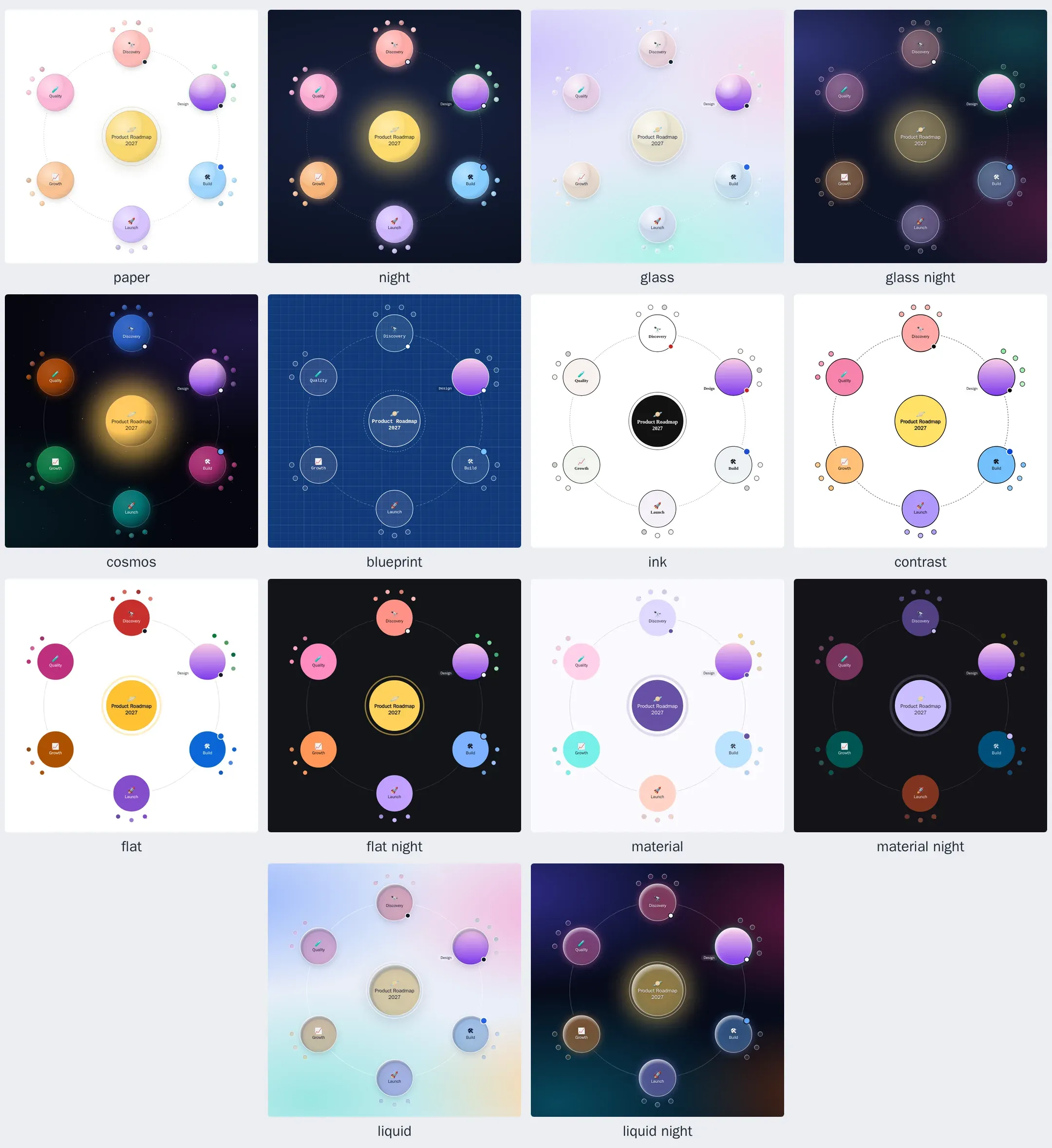
paper(the default): pastel planets with soft shadows, on your page’s own background.night: planets that glow on a deep navy sky.glassandglass-night: frosted, translucent planets over a soft backdrop of their own.cosmos: jewel-toned planets around a golden star, in a field of stars.blueprint: outlined planets, construction lines and monospaced labels on a gridded blue sheet.ink: black line art with serif lettering, on your page’s own background.contrast: black outlines, solid colors and bold labels, for the most legible map.flatandflat-night: solid, saturated planets with no shading, shadows or glow.materialandmaterial-night: Material 3’s tonal containers and surfaces.materialTheme('#0B57D0')builds the same look from any color, the way Material You colors an app from its wallpaper.liquidandliquid-night: liquid glass, clear planets that catch the light along their rims, over a vivid wallpaper of their own.auto:paperornight, following the reader’s light or dark preference.
Labels keep at least 4.5:1 contrast with their node in every theme.
Every color, size and finish is a CSS custom property, so you can restyle a map from your own stylesheet (the full list). Properties set by the page win over the theme:
orbit-map,
.my-map {
  --orbit-sans-font: Inter, sans-serif;  /* your font, in every sans-serif theme */
  --orbit-surface: #fbf8f3;              /* background behind the map */
  --orbit-color-root: #f8d978;           /* the root, then one color per branch */
  --orbit-color-1: #f5a3a8;
  --orbit-color-2: #a8ddb5;
  --orbit-node-text: #243042;
  --orbit-node-shadow-opacity: 0;        /* planets without a shadow */
  --orbit-ring-dash: none;               /* solid orbits */
  --orbit-sheet-background: #ffffff;     /* the detail sheet and the media viewer */
  --orbit-focus-ring: #2563eb;
}
Names are measured in the font they’re drawn with, so they fill their nodes without spilling out of them, in any font, and fit again when a web font arrives (Fonts).
The full list is exported as THEME_TOKENS, and themeTokens(name) returns a theme’s values (for example to style your own UI to match). A theme object sets values in code (theme: { preset: 'night', tokens: { surface: '#0b1020', 'ring-dash': 'none' } }), and palette: ['#…', '#…'] replaces the node colors. Children share their branch’s color in lighter and darker shades, and labels switch to light text on dark nodes on their own.
Browsers
Orbit is made for current browsers, and draws in older ones down to Chromium 99, which some phones’ WebViews still run. A few effects need newer CSS, and older browsers get plainer versions instead of broken ones:
- without
color-mix()(Chromium 111, Safari 16.2, Firefox 113), sibling ideas keep their branch’s color instead of a shade of it, and rims, rings, shadows and halos take the theme’s own colors; - without the
translateproperty (Chromium 104), overlays are centered through their transform; - without the
dvhunit (Chromium 108), the detail sheet sizes byvh.
Cleanup
If you mount via renderOrbitElement and later remove the host from the DOM, call OrbitSVGRenderer.unmount(host) to release RAF + ResizeObserver resources. The <orbit-map> element does this automatically.
Development
With Bun installed:
bun install
bun run verify          # lint + typecheck + test + build
bun test                # the whole suite; bun test tests/renderer.test.ts runs one file
bun run build           # ESM + .d.ts into dist/
bun run site            # the website at http://localhost:4174, the playground at /playground.html
bun run test:browser    # spin, zoom, navigation and screenshots in Chromium (needs Docker or Podman)
bun run bench           # frame rates on a large map in Chromium; -- --profile=phone for a phone
bun run docs:api        # regenerate docs/api from the source
See CONTRIBUTING.md for guidelines and RELEASE.md for the publish checklist.
License
MIT